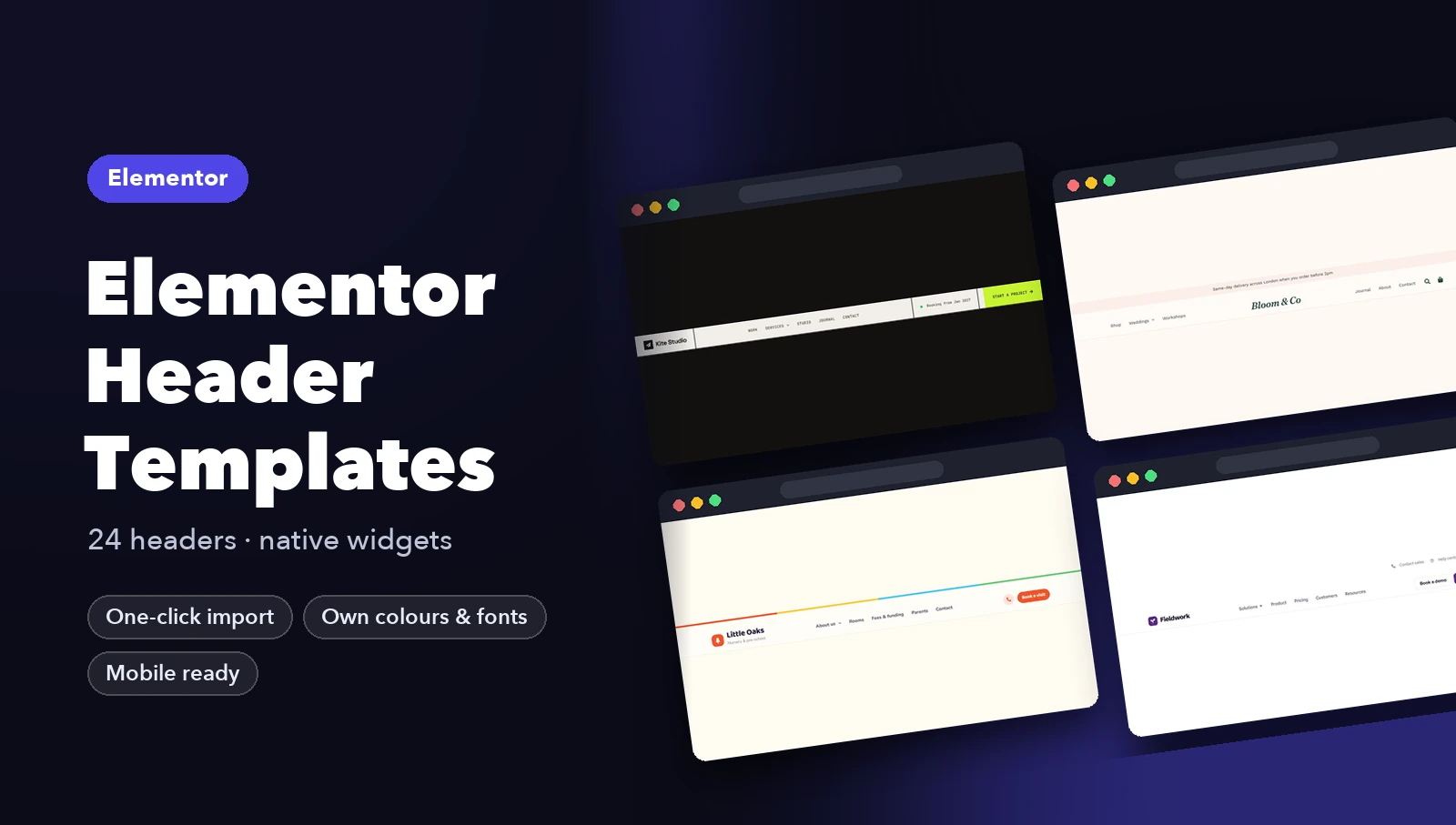
Your header and footer appear on every page, so they shape how professional a site feels more than any single section. This guide covers how to set them up in Elementor, with or without Pro, what to put in them, and twelve designs that solve real problems for different kinds of business.
Option 1: Elementor Pro (Theme Builder)
With Elementor Pro, headers and footers are built and assigned in the Theme Builder:
- Go to Templates → Theme Builder and choose Header (or Footer).
- Click Add New, then design it from scratch or import a template you downloaded.
- Click Publish. In the conditions screen, choose Add Condition → Include → Entire Site and save.
You can create several headers and give each different conditions, for example a transparent header only on the home page and a solid one everywhere else.
Option 2: free Elementor
Free Elementor has no Theme Builder, so it cannot replace your theme’s header on its own. You have two good choices:
- Use your theme’s header and footer and style them in Appearance → Customize. Simple, but limited.
- Install a free header and footer builder plugin from WordPress.org (search “Elementor header footer”). These let you design the header with Elementor and assign it to the whole site, much like the Theme Builder.
The header and footer designs below use Pro features, so they are easiest on Elementor Pro.
What a header needs
- Logo, linked to the home page.
- Four to seven menu items. More than that belongs in a mega menu or the footer.
- One main action, such as “Book a demo”, “Shop now” or “Call us”, styled as a button.
- A mobile menu that opens with a clear toggle and keeps the main action visible.
Keep it short in height. A tall header pushes the hero down and costs you the first screen. Make it sticky only if your pages are long. For the CSS behind sticky headers, see How to Make a Sticky Header.
What a footer needs
- Contact details and opening hours for local businesses.
- Grouped links: product, company, help and legal.
- One last call to action, a newsletter signup or a “Get started” band.
- Legal lines: copyright, privacy, terms and company or charity numbers.
Our footer checklist has the full list.
6 Elementor header designs

Dark mega menu. An announcement bar for news above a dark navigation bar, with the demo button in the brand colour.

Transparent over hero. Made to sit over a full-width hero image. The phone number and a “Plan a trip” button stay in reach.

Floating glass bar. A floating, rounded bar with a glass effect. It feels light and modern on product sites.

Estate agent mega. Built for an estate agent: phone number, a “Value my home” link and a “Search homes” button side by side.

Coffee hanging badge. A centred badge logo that hangs below the bar, with the shop and cart on the right. Very café.

Podcast listen on. For a podcast: “Listen on” platform icons and a Subscribe button replace the usual call to action.
6 Elementor footer designs

SaaS cta columns. A call-to-action card above the link columns, so the page ends with one more reason to start a trial.
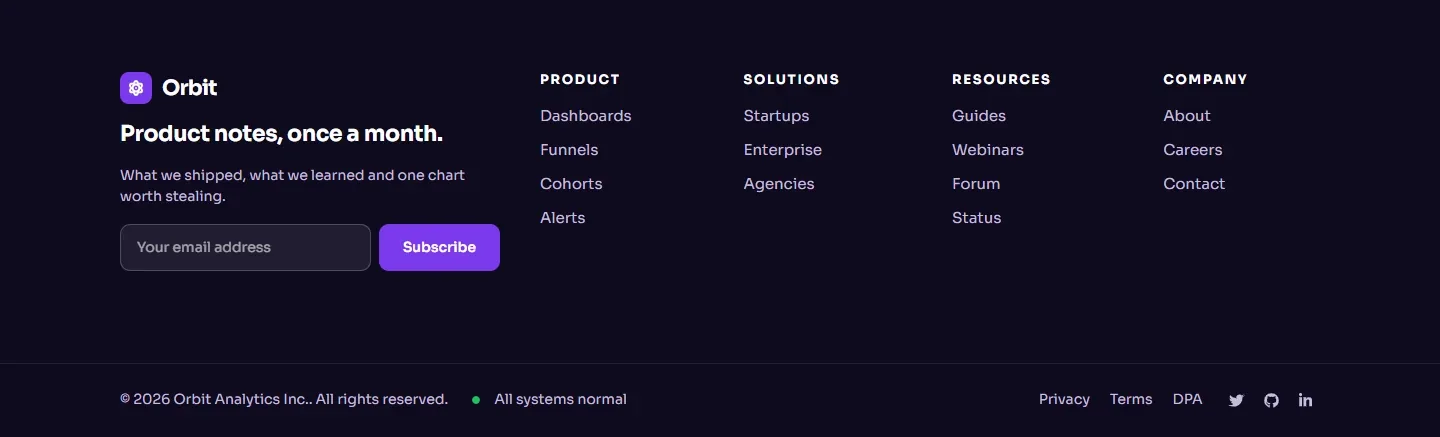
Dark newsletter. A dark footer with a newsletter signup on the left, four link groups and a system status line.
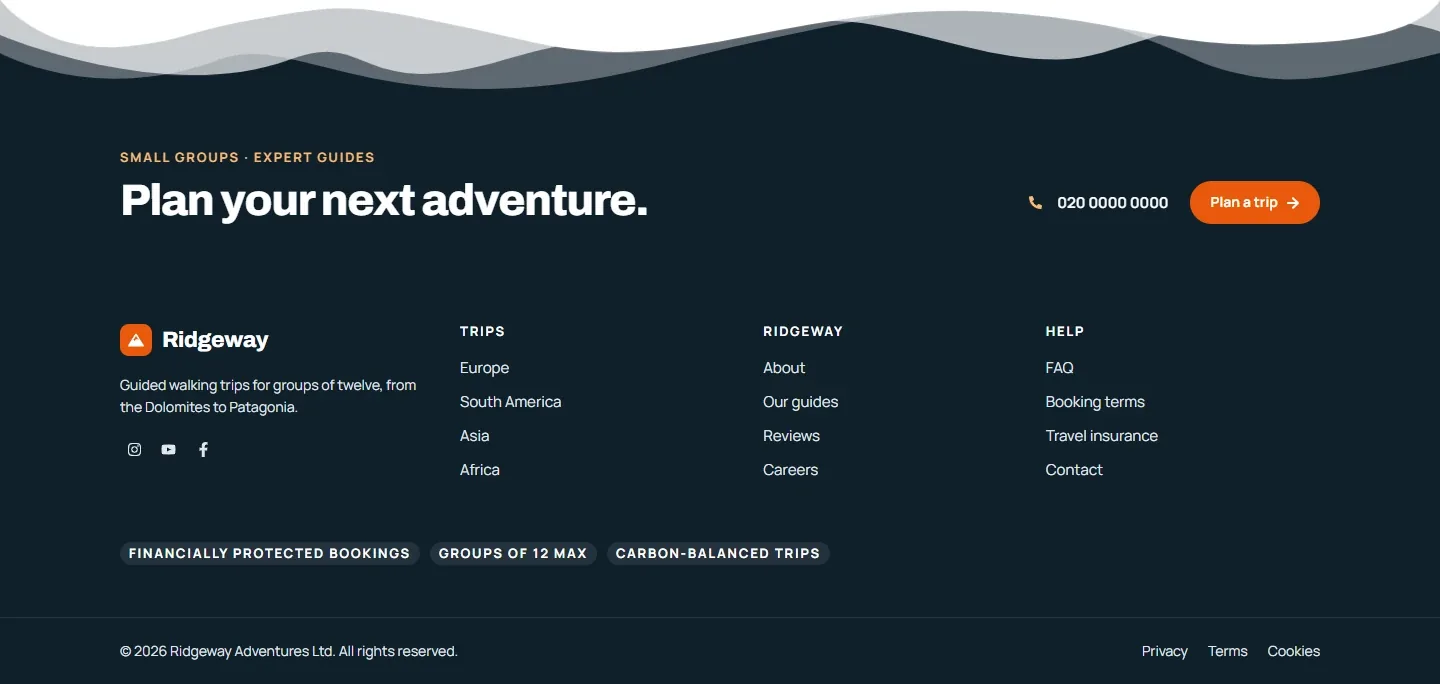
Adventure mountains. A mountain-shaped top edge leads into a final call to action, with trust badges under the links.
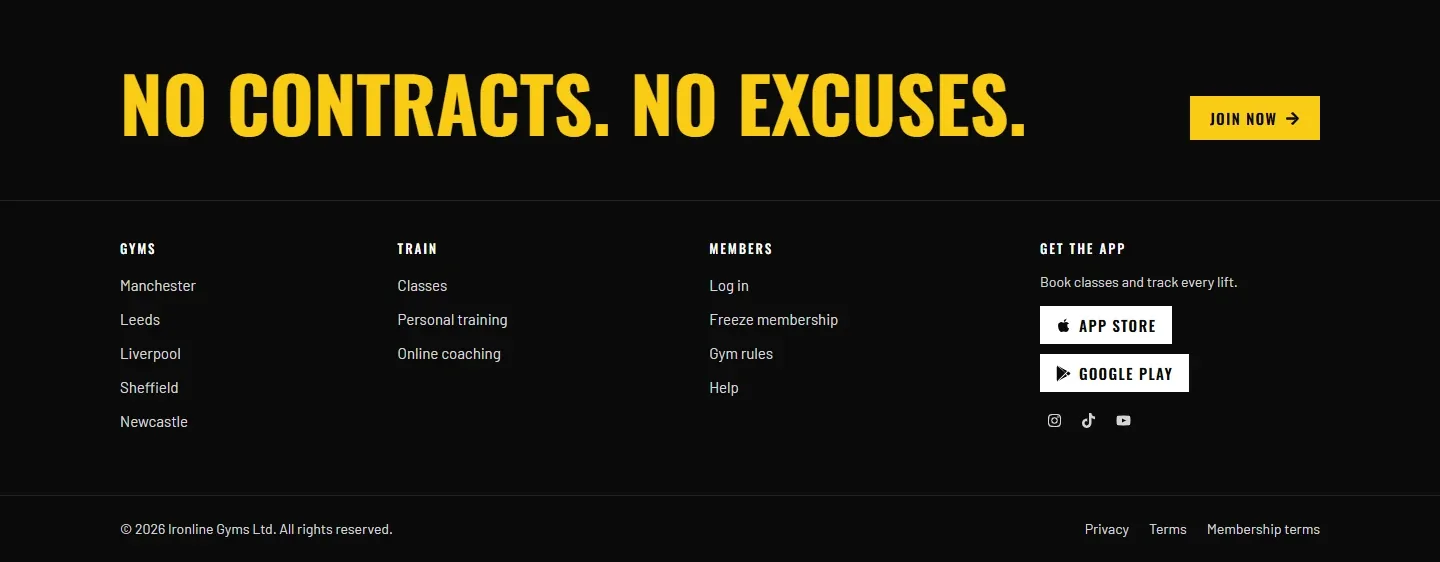
Gym app badges. A bold slogan and app store buttons. The footer itself sells the membership.
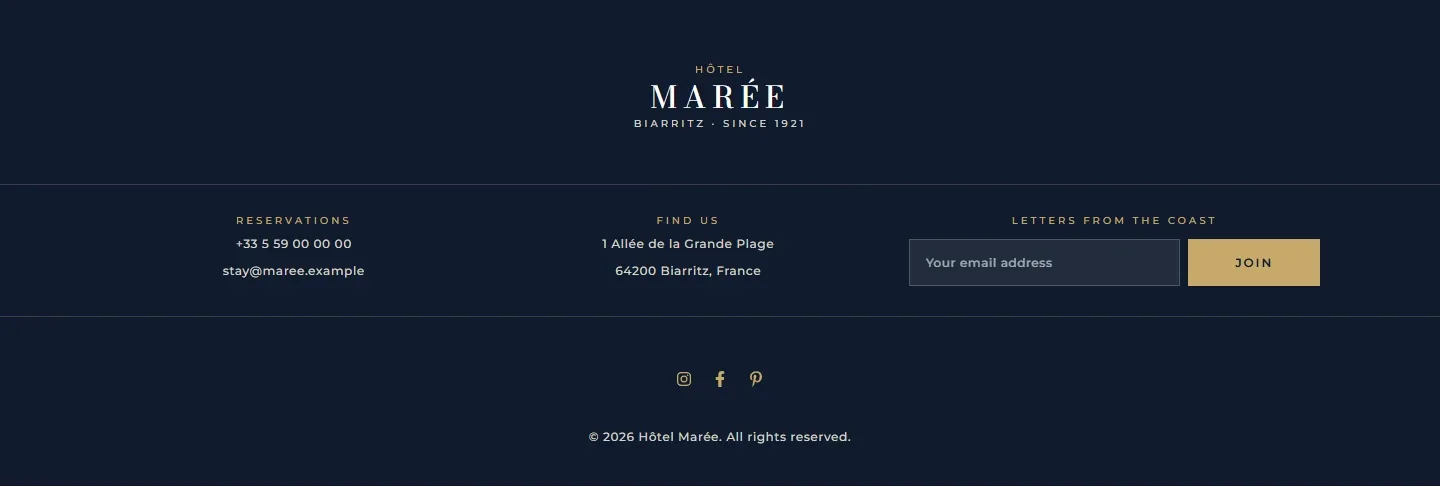
Hotel centred gold. Centred and calm for a hotel: reservations, address and a newsletter in three columns.
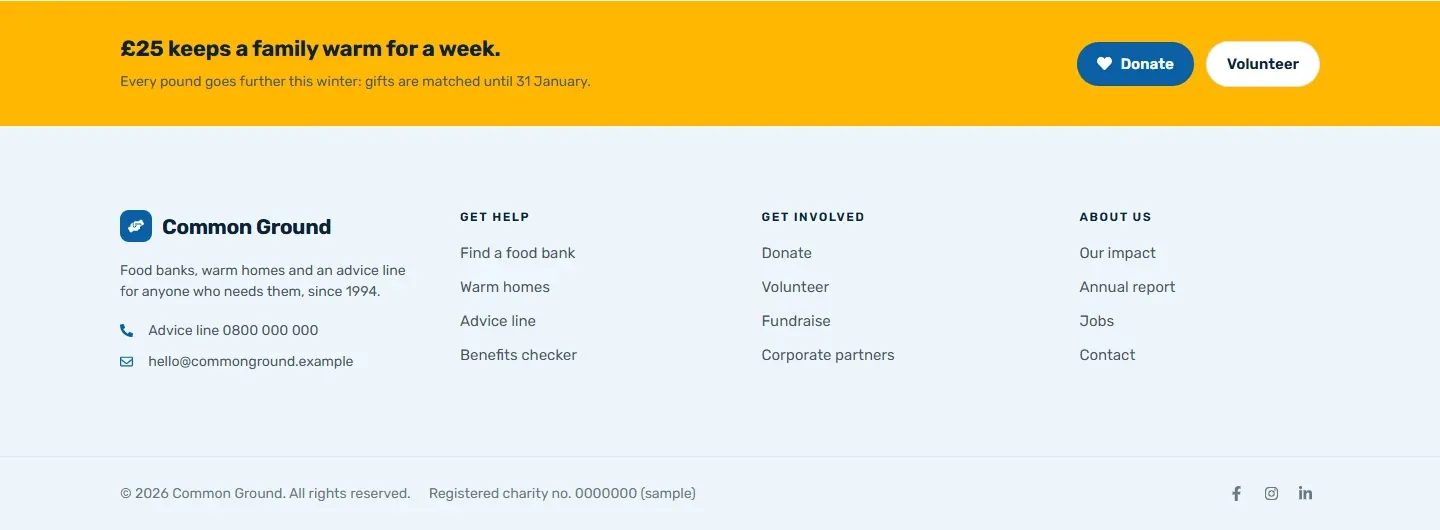
Charity donate band. A donation band on top, help and volunteering links, and the registered charity number in the legal line.
Download headers and footers for Elementor
Two headers and two footers are free: Split CTA, Bistro centred serif, SaaS CTA columns and Bistro centred. Get them from our free Elementor templates. Import help is in How to Import Elementor Templates.
The full Elementor Header Templates kit and Elementor Footer Templates kit have 24 designs each for $19. Every header includes a working mobile menu.